MFA (Multi-Factor Authentication)
Setting up TOTP (Time-based One-time Password) adds a one-time code requirement on top of your password, strengthening your account security.
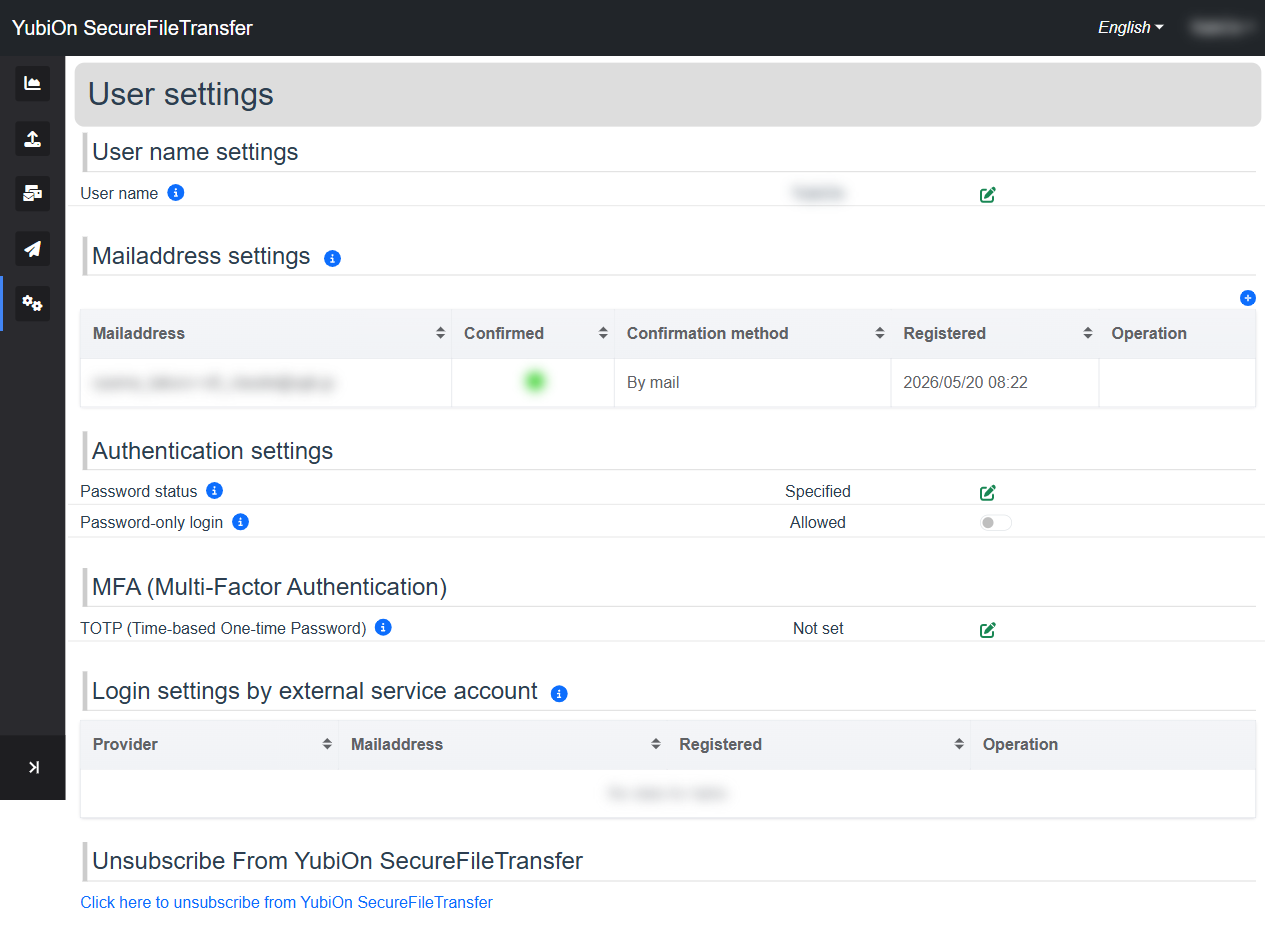
What is TOTP?
A 6-digit code generated every 30 seconds by an authenticator app such as Google Authenticator. Even if your password is compromised, no one can log in without access to the authenticator app.
Prerequisites
The following are required to set up TOTP:
- An authenticator app installed on your smartphone (e.g. Google Authenticator)
- A password must already be set on your account (see Password Settings)
Setting Up TOTP
Click the edit icon (pencil) next to "TOTP (Time-based One-time Password)" in the "MFA (Multi-Factor Authentication)" section of User settings
The TOTP setup dialog opens
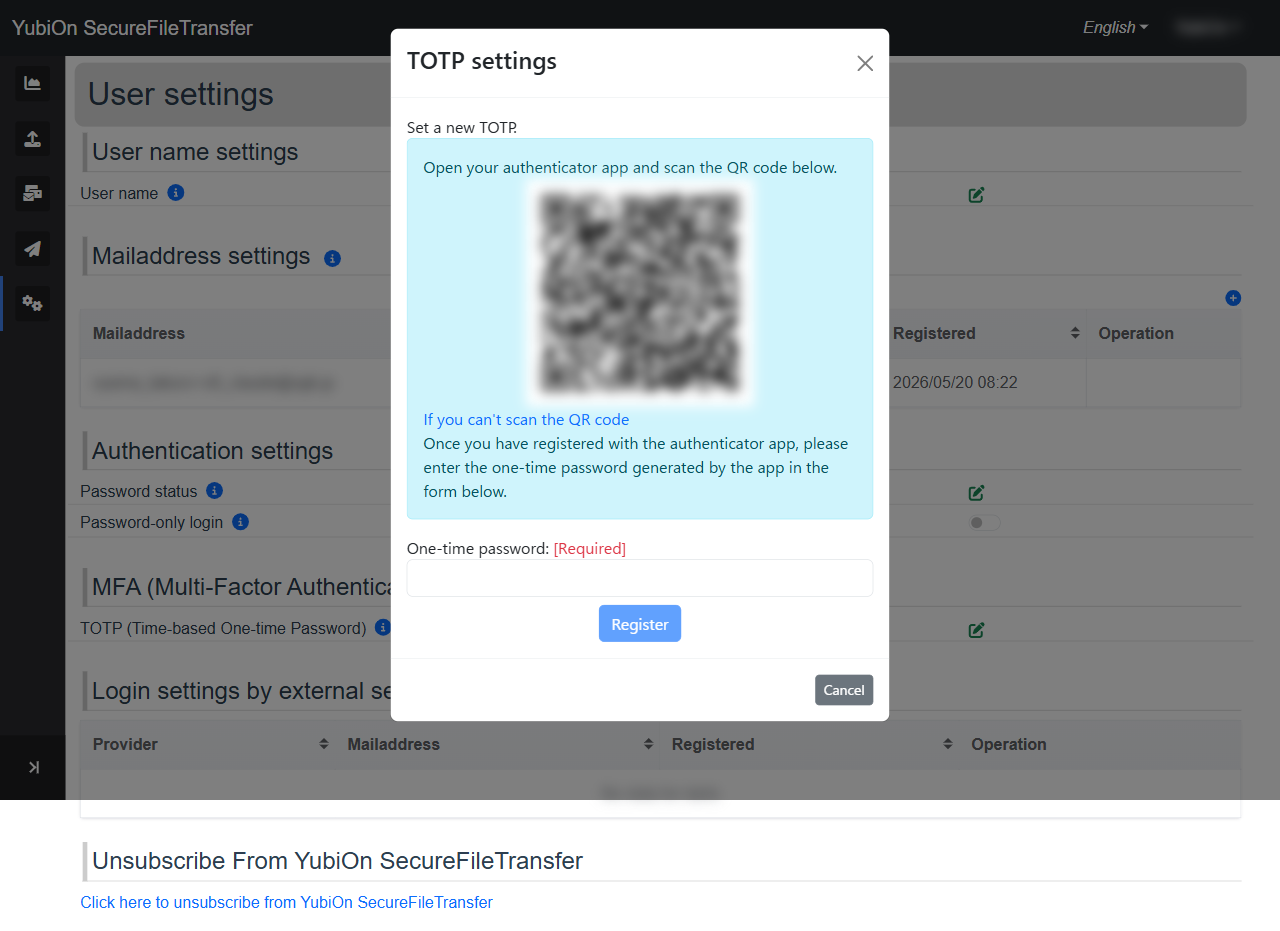
Scan the displayed QR code with your authenticator app
If you cannot scan the QR code, expand "If you can't scan the QR code" and manually enter the displayed secret key into your authenticator app.
Enter the 6-digit one-time password shown in your authenticator app
Click the "Register" button
A success notification is displayed
Updating TOTP (Re-registration)
You can update your TOTP configuration by following the same steps above.
WARNING
Updating TOTP invalidates the previous configuration in your authenticator app.
Be sure to scan the new QR code with your authenticator app.
Logging in with TOTP
When TOTP is configured, a "Password + TOTP" tab appears on the login screen.
Enter both your password and the one-time code from your authenticator app to log in.
See Login (Quick Start) for details.