Step 2: Login
Once you have completed user registration, log in to the service.
Login Flow
1. Access the login page
      ↓
2. Choose a login method
   ├─ Log in with email address
   └─ Log in with Google account
      ↓
3. Go to the dashboard
Log In with Email Address
Open the login page
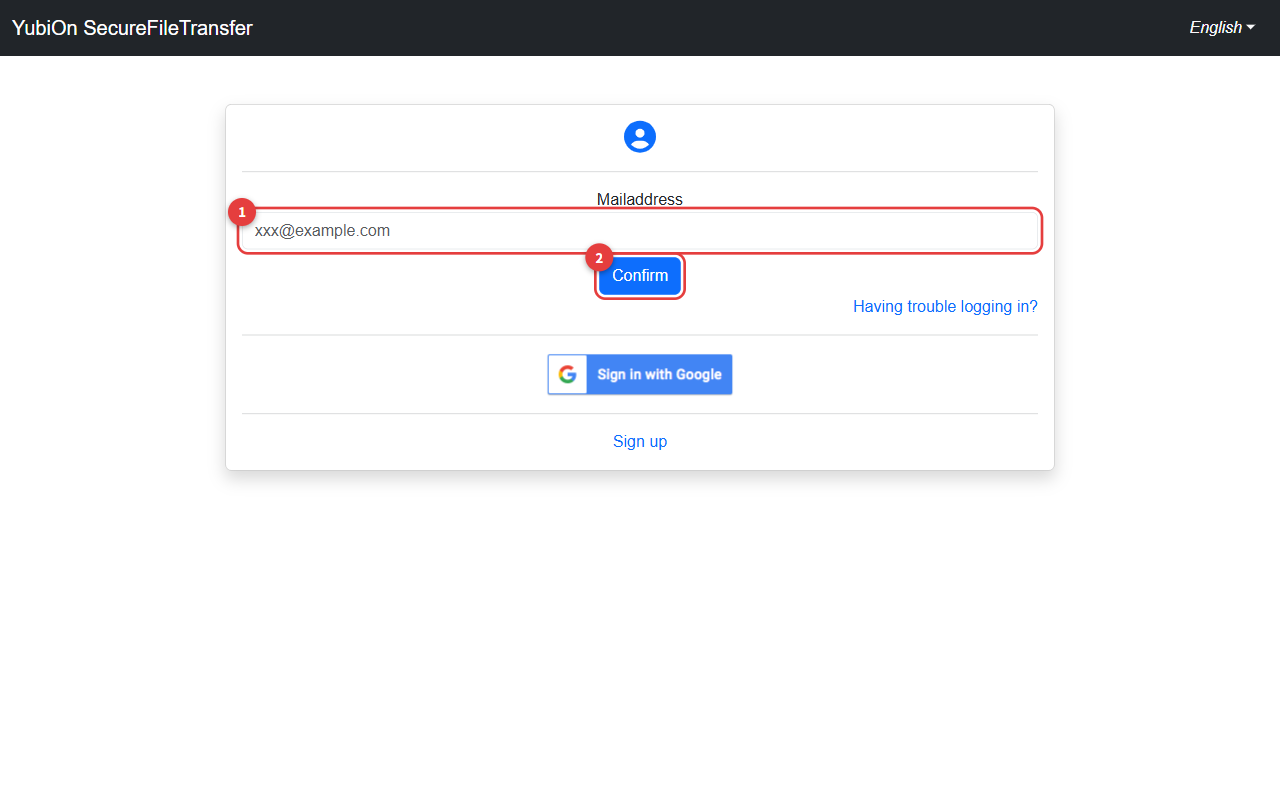
Enter your email address and click the "Confirm" button
The login modal will appear
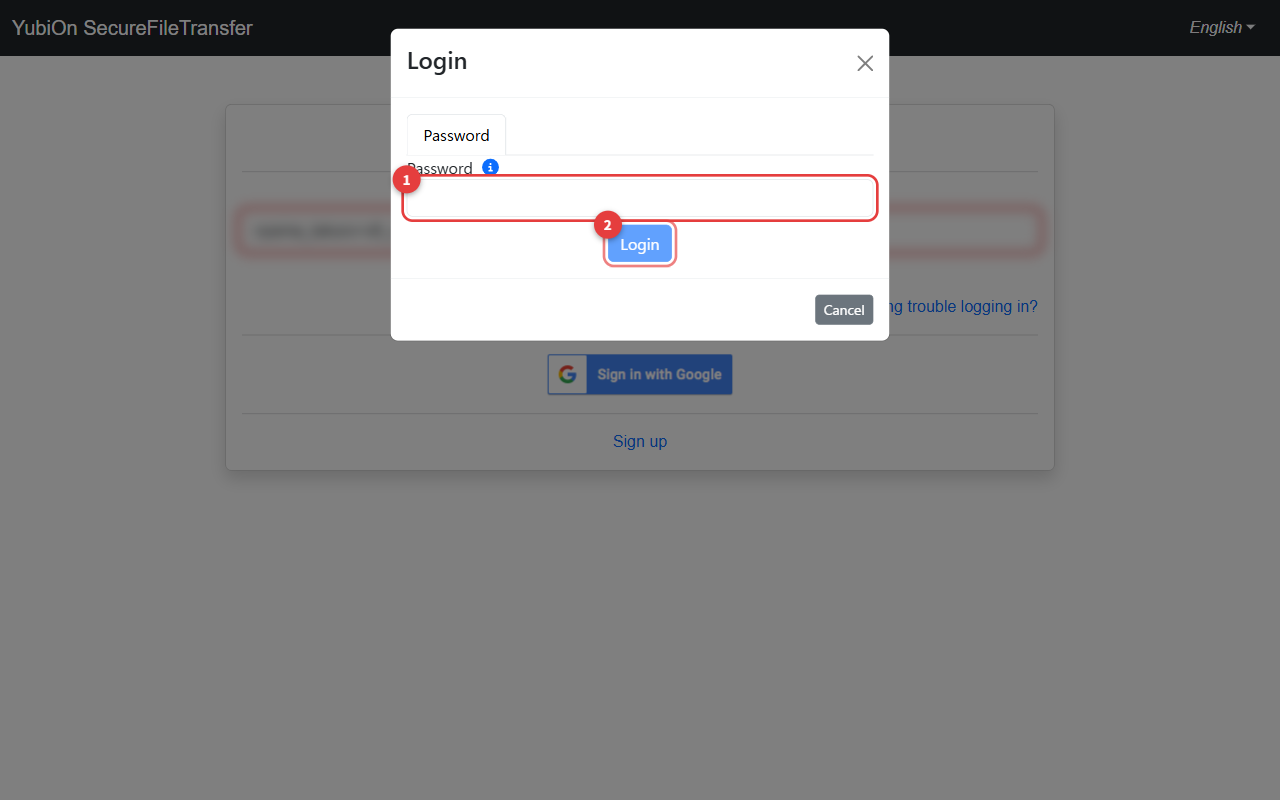
Enter your password and click the "Login" button
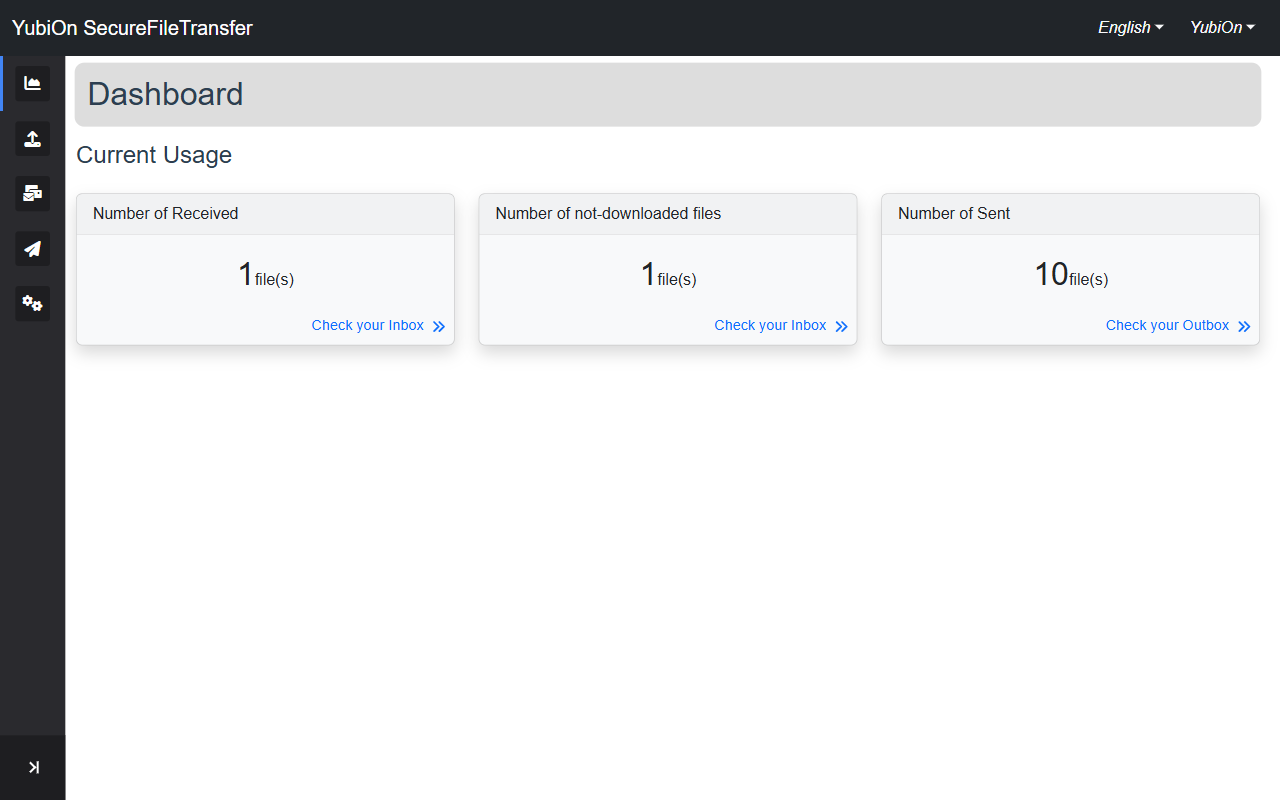
After a successful login, you will be taken to the dashboard
If you have TOTP (Two-Factor Authentication) enabled
If you have TOTP set up, a dedicated tab will appear in the login modal.
- Select the "Password + TOTP" tab
- Enter your password and the one-time password from your authenticator app
- Click the "Login" button
About TOTP
TOTP is a 6-digit code generated by an authenticator app such as Google Authenticator. For setup instructions, refer to MFA (Multi-Factor Authentication) in User settings.
Log In with Google Account
- Open the login page
- Click the "Sign in with Google" button
- Follow the instructions on the Google authentication screen
- After authentication, you will be taken to the dashboard
If You Forgot Your Password
- Click the "Having trouble logging in?" link on the login page
- Enter your registered email address and submit
- A password reset email will be sent
- Click the link in the email and set a new password
WARNING
The password reset link has an expiration date. Please complete the process promptly after receiving the email.
Login is complete. Proceed to sending files.