Send Files
Upload files and generate a download URL to share with recipients.
Open this screen from "Upload" in the sidebar.
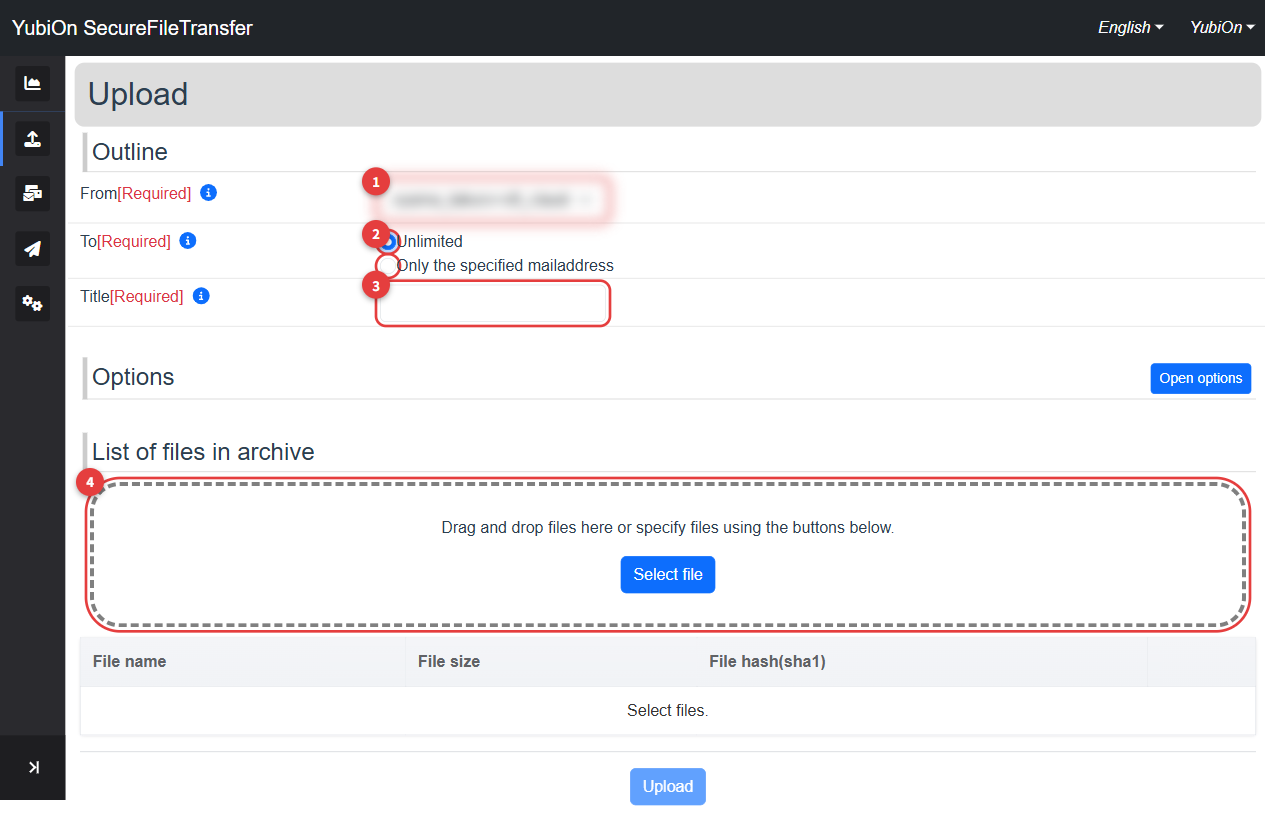
Input Fields
Sender Email Address
Select the email address to display as the sender from the dropdown.
If multiple email addresses are registered to your account, you can switch between them here.
Recipients
Set who can download the file.
| Option | Description |
|---|---|
| Unlimited | Anyone who knows the download URL can download the file |
| Only the specified mailaddress | Only users logged in with the specified mailaddress can download |
When "Only the specified mailaddress" is selected, enter the recipient's email address.
Use the "+" button to add more recipients, and the "−" button to remove them.
TIP
The same email address cannot be specified more than once.
Title
| Field | Limit |
|---|---|
| Title | Up to 128 characters · Required |
This name is also displayed to the recipient. Use a descriptive name.
Optional Settings
Expand the "Options" section for additional settings.
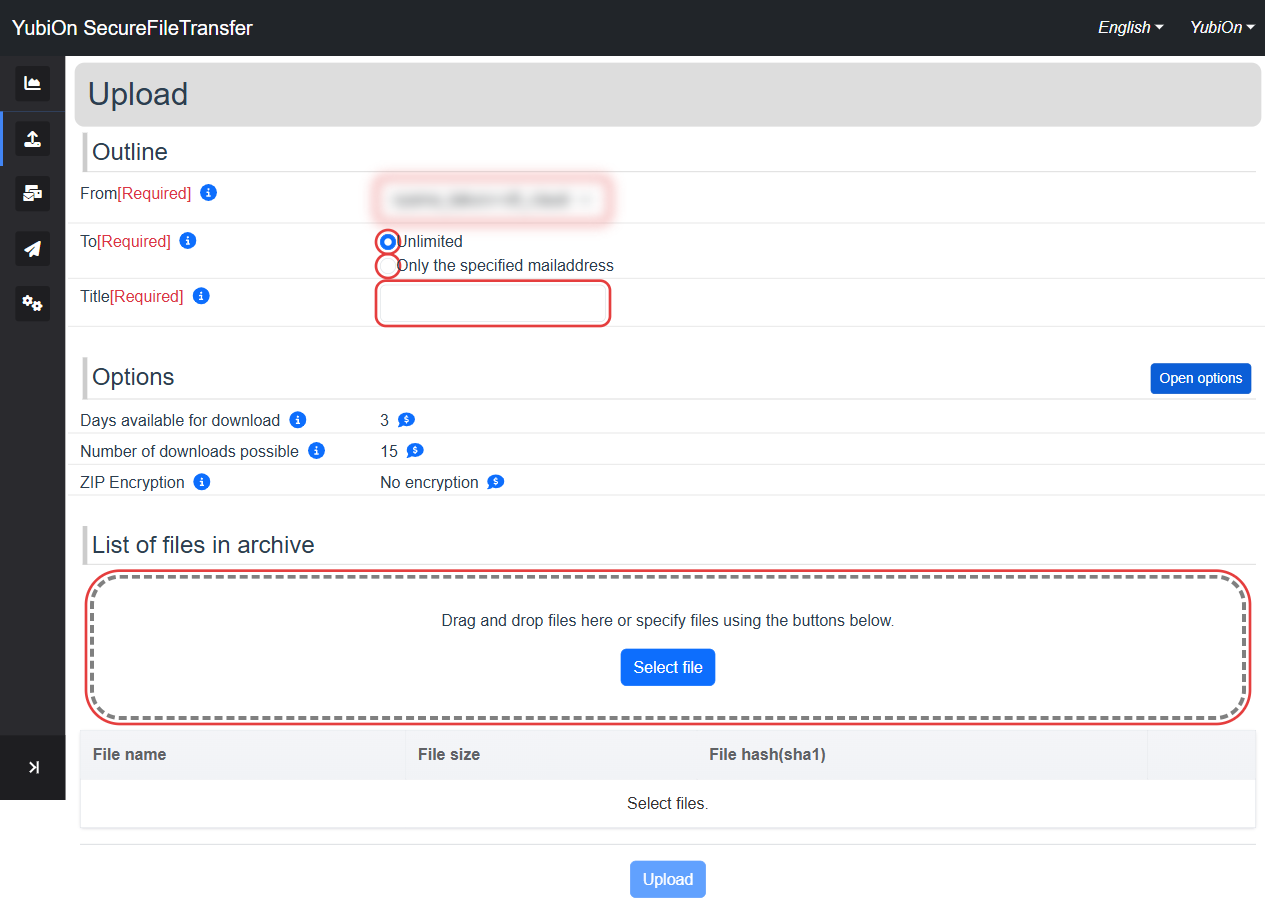
Days available for download
Set how many days the download URL remains valid.
After expiration, the file can no longer be downloaded.
INFO
The Free plan has a fixed number of days that cannot be changed. Paid plans allow changes within the range set for the organization or user.
Number of downloads possible
Set the maximum number of times the file can be downloaded.
Once the limit is reached, no further downloads are allowed.
INFO
The Free plan has a fixed number of downloads that cannot be changed. Paid plans allow changes to the setting.
ZIP Encryption
| Format | Description |
|---|---|
| No encryption | Files bundled as a standard ZIP archive |
| Encryption | Files bundled as a password-protected ZIP archive |
When "Encryption" is selected, set a password for extraction.
Share the password with the recipient via a separate channel (email, phone, etc.).
INFO
ZIP Encryption is not available for the Free plan. It is only selectable for Paid plans.
Adding Files
There are two ways to add files:
- Drag & Drop: Drag files into the dashed area
- File Picker: Click "Select file" to choose files
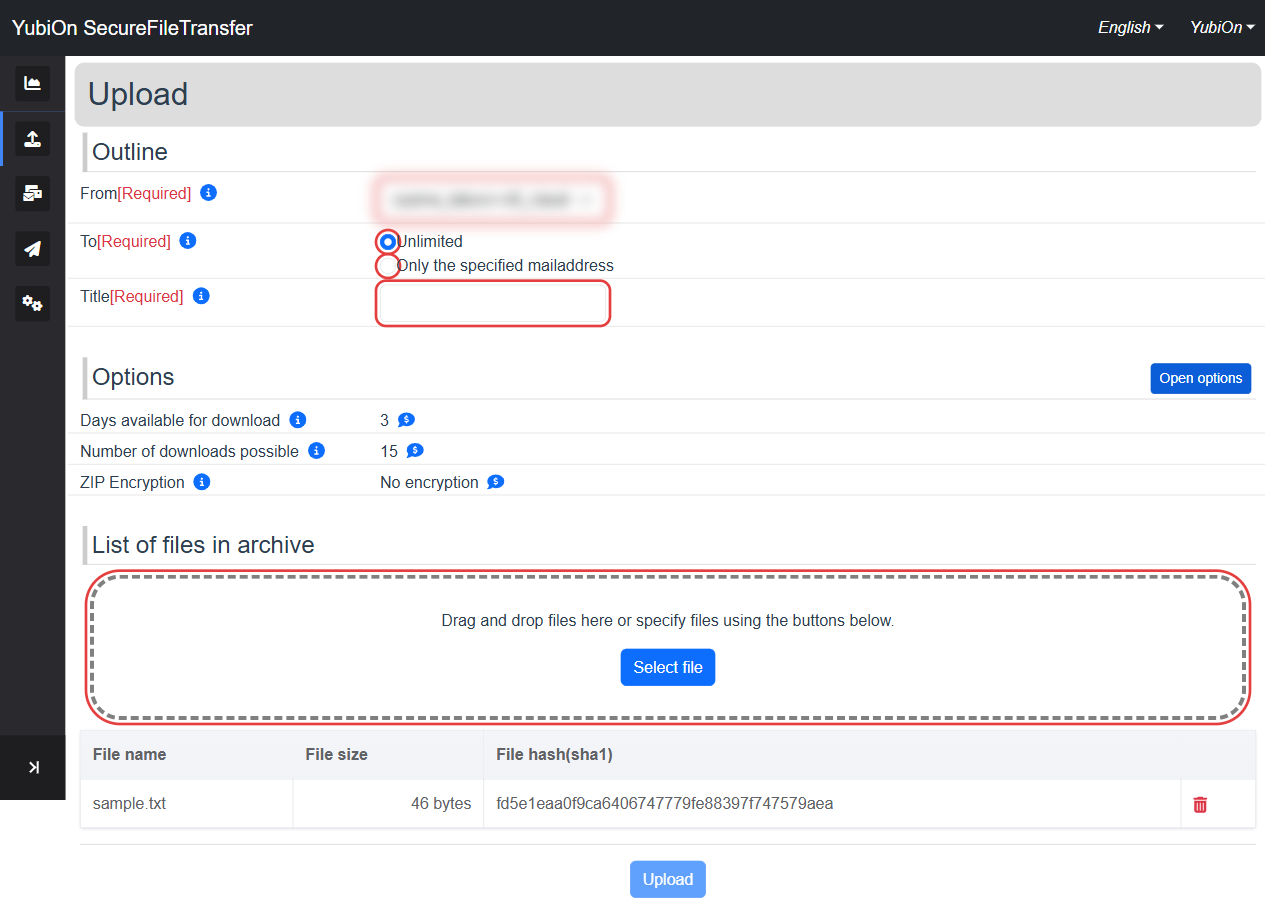
Added files appear in the list below.
| Column | Description |
|---|---|
| File name | Name of the file to upload |
| File size | Size of the file to upload |
| File hash(sha1) | Hash value for integrity verification (calculated automatically) |
| Action | Click the trash icon to remove the file |
Directories cannot be uploaded
Dragging a folder is not supported. To send a folder, compress it into a ZIP file first.
No duplicate file names
Multiple files with the same name cannot be added.
File size limit
There is a limit to the total size that can be uploaded. An error is shown if the limit is exceeded.
Sending
- Click the "Upload" button
- An error occurs if no files have been added
- Click "OK" in the confirmation dialog
- The files are compressed, hashed, and uploaded in sequence
- A progress bar shows the current status
- Once complete, the upload completion screen appears
After Sending
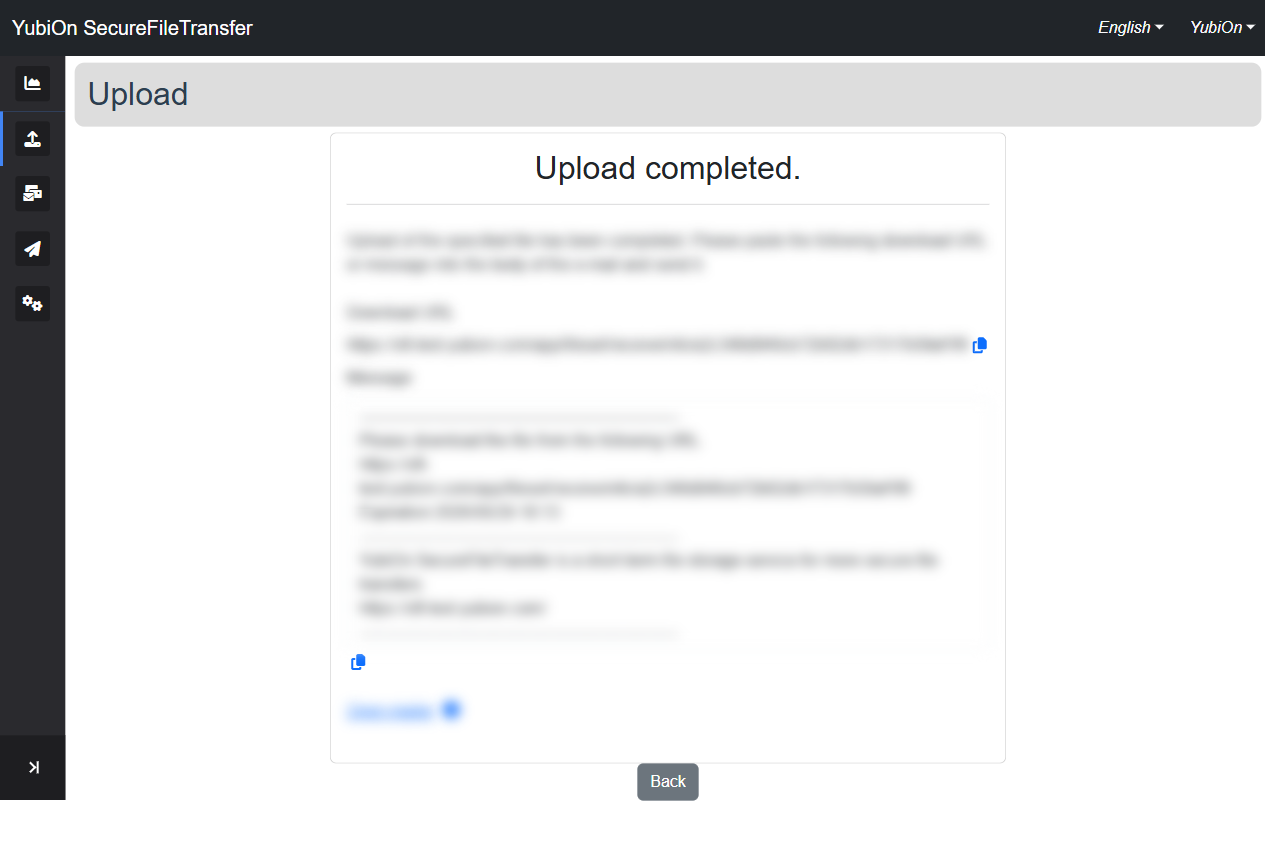
The following are displayed on the completion screen.
| Item | Description |
|---|---|
| Download URL | The URL to share with recipients (copy button available) |
| Message | A draft message body including the URL and expiration (copy button available) |
| Open mailer | Opens your default mail client with the message pre-filled |
Share the download URL with your recipients.
If recipients were specified by email address, they must log in with that address to download the file.
Click "Back" to return to the dashboard.