Password Settings
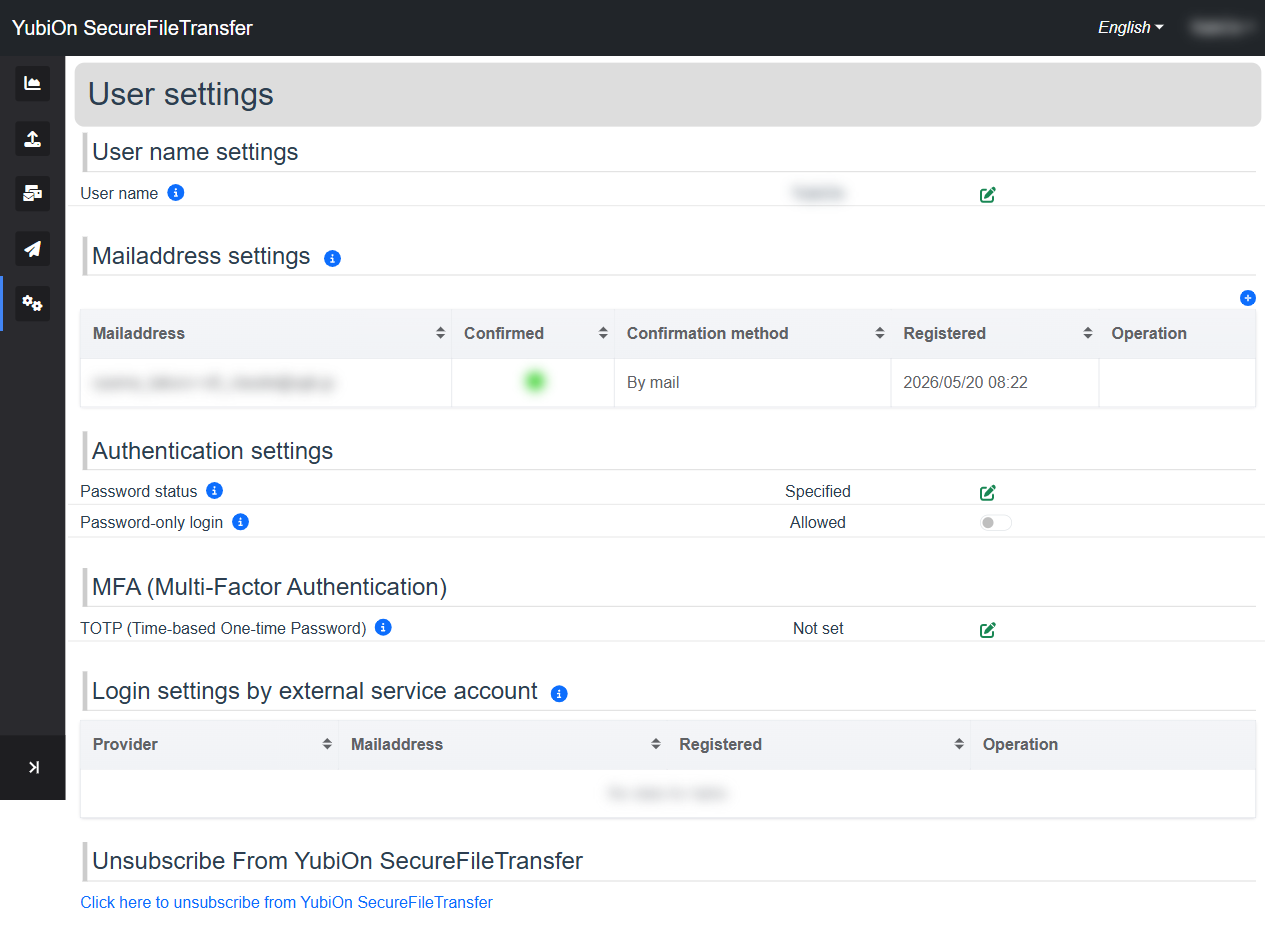
Manage your password and control whether password-only login is permitted.
Setting or Changing Your Password
Setting a password for the first time (no password set)
If you registered with a Google account and have no password set, you can create one here.
Click the edit icon (pencil) in the "Password status" section of User Settings
The password dialog opens
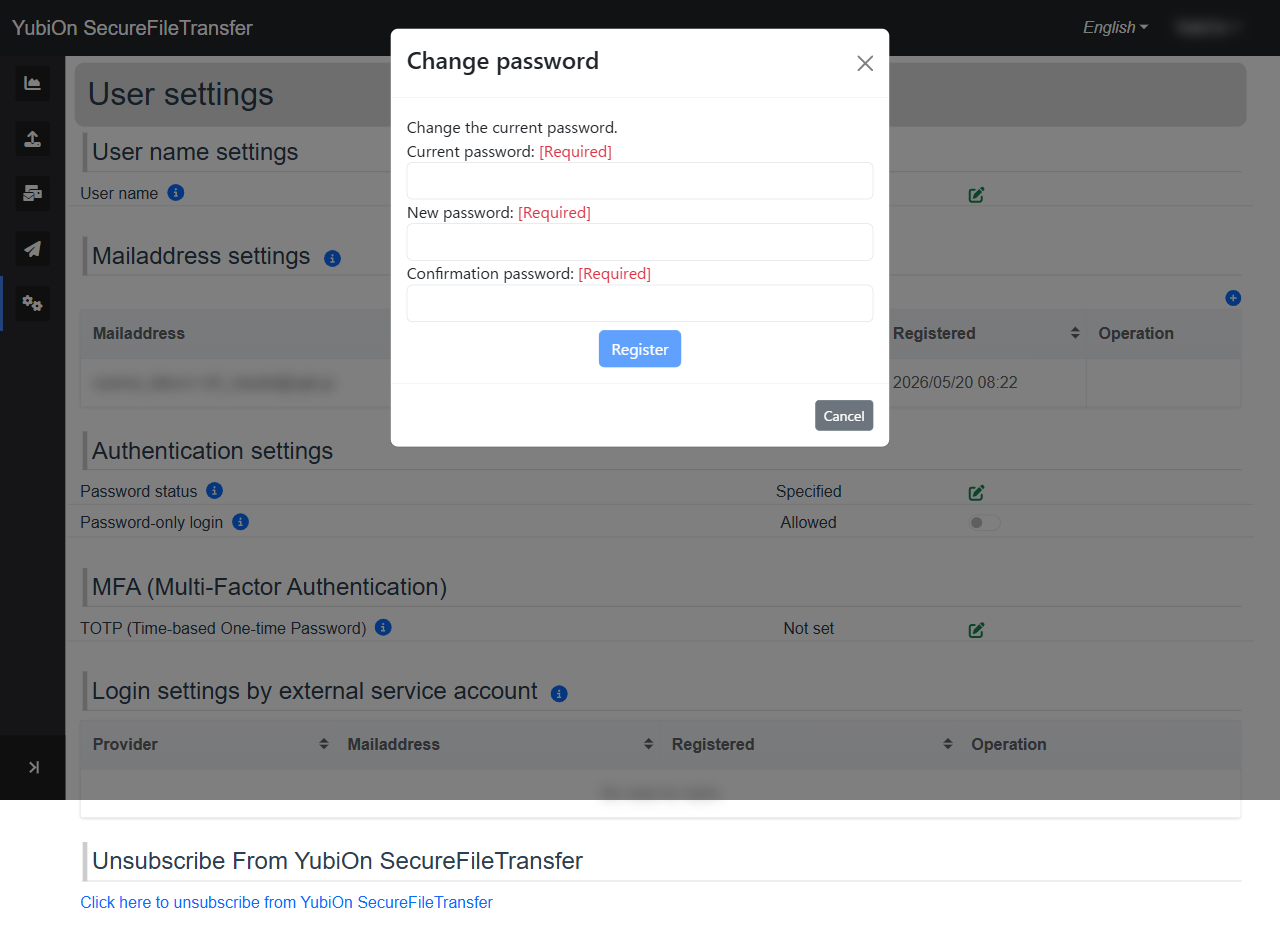
Enter the new password and confirm it
Field Limit New password 8–60 characters · Required Confirmation password Must match the new password · Required Click the "Register" button
Click "OK" in the confirmation dialog
Changing an existing password
Click the edit icon in the "Password status" section
The password change dialog opens
Enter your current password and the new password
Field Limit Current password Required New password 8–60 characters · Required Confirmation password Must match the new password · Required Click the "Register" button
Click "OK" in the confirmation dialog
Password-only login
Control whether logging in with a password alone is allowed or denied.
| Setting | Description |
|---|---|
| Allowed (default) | Users can log in with a password only |
| Denied | Login requires both a password and TOTP or an external provider |
Before setting to "Denied"
To deny password-only login, at least one of the following must already be configured.
The setting cannot be changed without one of these.
- MFA (Multi-Factor Authentication) is set up
- External Provider (Google) is connected
Changing to "Denied"
- Click the toggle switch for "Password-only login"
- Review the available login methods (TOTP / Provider) in the confirmation dialog
- Click "OK" to apply the change
Changing to "Allowed"
- Click the toggle switch for "Password-only login"
- Click "OK" in the confirmation dialog