Email Address Management
Manage the email addresses linked to your account.
Registering multiple addresses lets you switch the sender address when sending files.
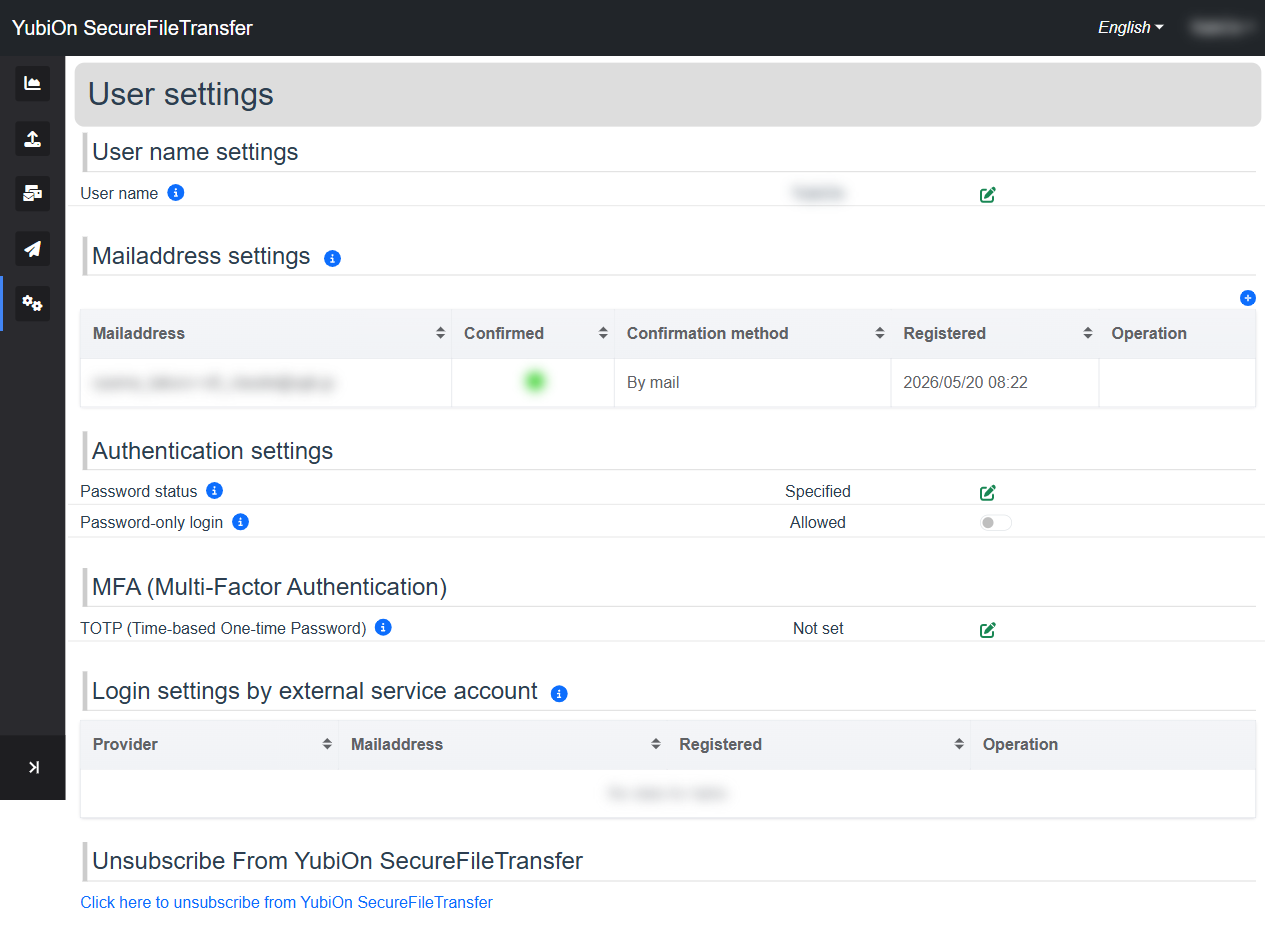
Email Address List
All registered email addresses are shown in a list.
| Column | Description |
|---|---|
| Mailaddress | The registered email address |
| Confirmed | Whether the email address has been verified |
| Confirmation method | How the address was verified (Email / Google) |
| Registered | Date and time the address was registered |
| Operation | Delete button (shown only when conditions are met) |
"Confirmed" Column Icons
| Icon | Status |
|---|---|
| Check mark (green) | Verified |
| Minus mark (grey) | Not verified |
Adding an Email Address
Click the "+" button at the top right of the list
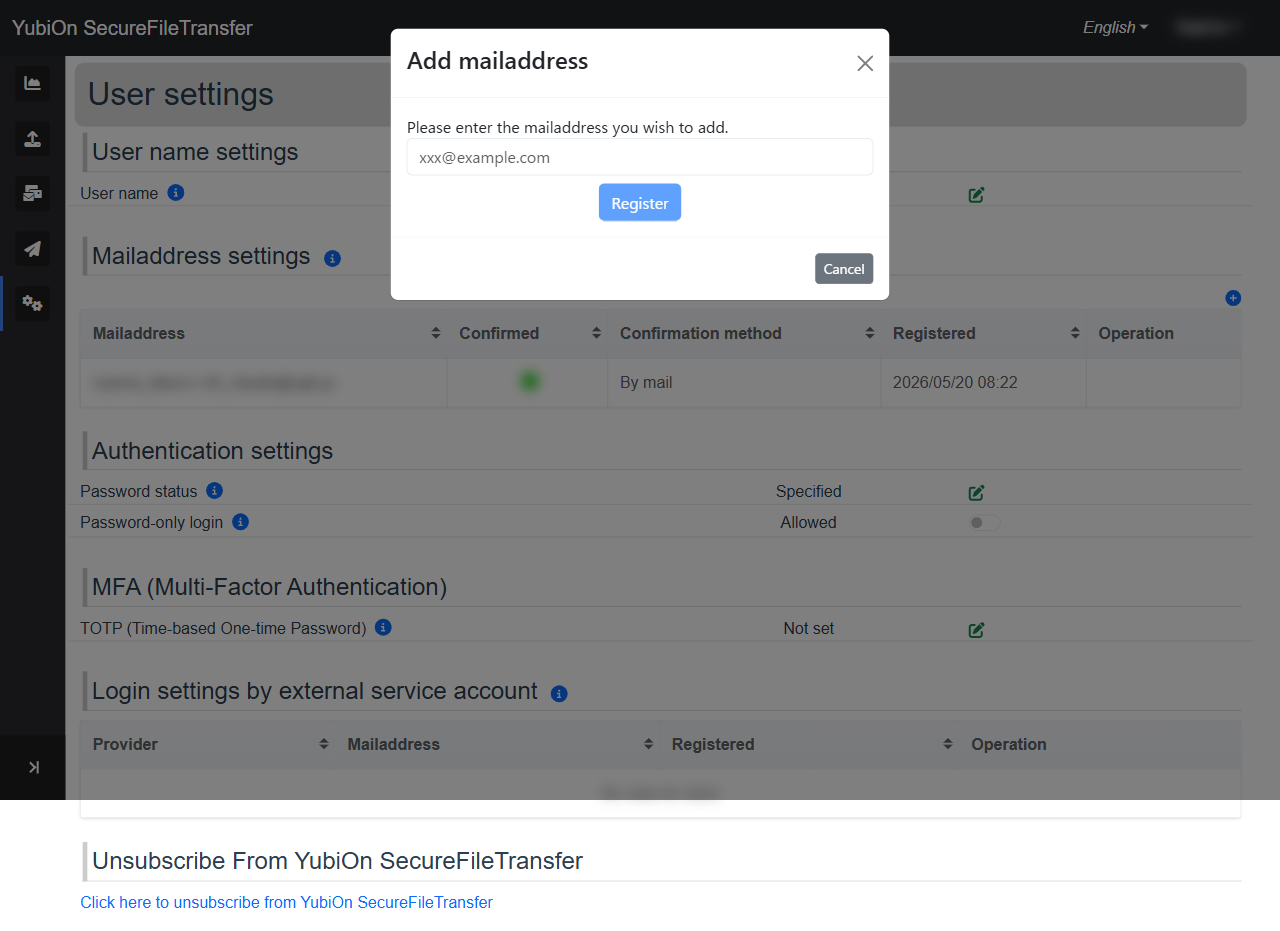
Enter the email address to add
Click the "Register" button
Click "OK" in the confirmation dialog
A verification email is sent to the entered address
Click the link in the verification email to confirm the address
WARNING
An email address already used by another account cannot be added.
Deleting an Email Address
The delete button (trash icon) is shown when the following conditions are met:
Conditions for Deletion
- The address is not verified, OR it was verified by email (addresses verified via Google cannot be deleted)
- AND it is not the primary email address (the address used to log in)
WARNING
The primary email address cannot be deleted.
Steps to delete:
- Click the trash icon in the row of the address to remove
- Click "OK" in the confirmation dialog
- The list refreshes after deletion