Member List & Management
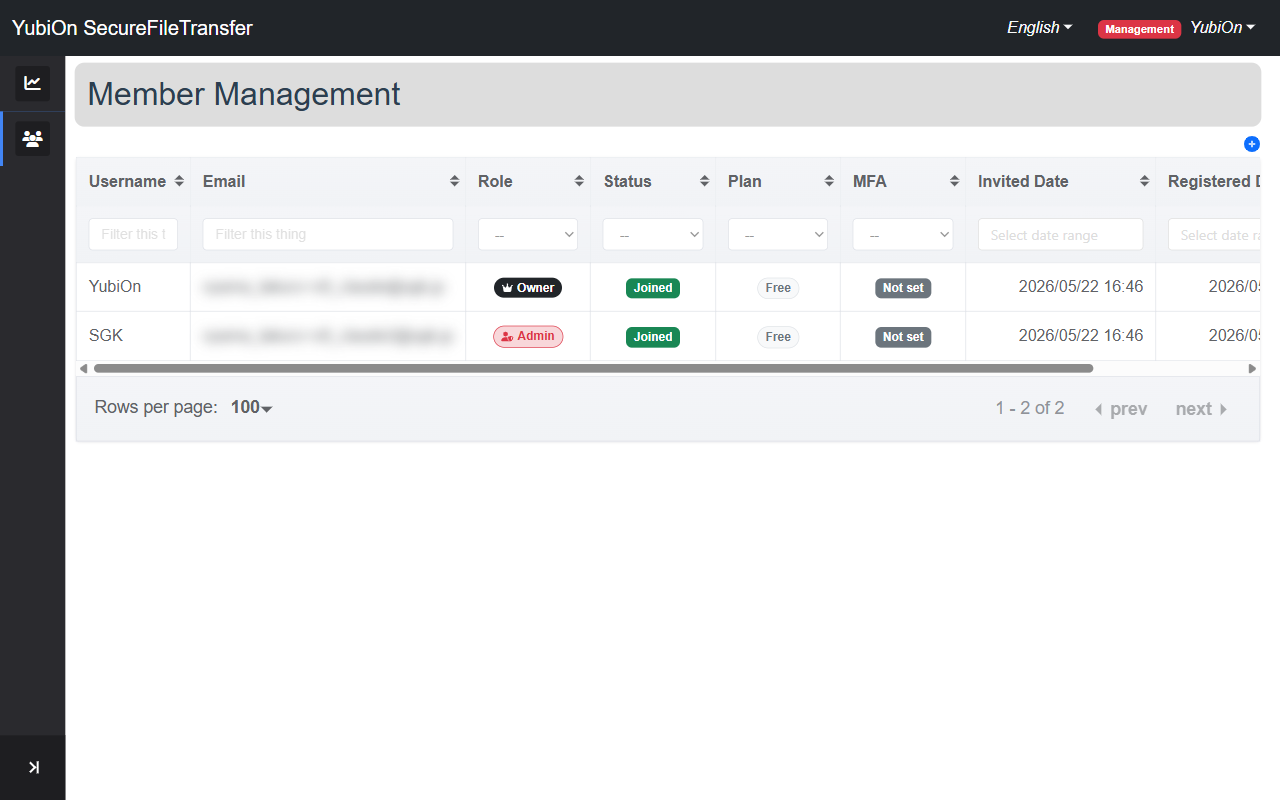
The screen for viewing and managing members in your organization.
Open this screen from "Organization Members" in the sidebar.
Required role: Admin or above
List Columns
| Column | Description |
|---|---|
| Username | Username |
| Email address | |
| Role | Owner / Admin / Member |
| Status | Joined / Invited |
| Plan | Paid / Free |
| MFA | Whether multi-factor authentication (TOTP) is enabled |
| Invited Date | Date and time the invitation email was sent |
| Registered Date | Date and time the invitation was accepted |
| Action | Reinvite / Change Role / Delete buttons |
Filtering
Each column has a filter input field.
| Column | Filter Method |
|---|---|
| Name / Email | Text partial match |
| Role / Status / Plan / MFA | Dropdown selection |
| Invited Date / Registered Date | Date range picker |
Action Buttons
The action buttons shown per row depend on the target member's role and your own role.
| Button | Display Condition | Action |
|---|---|---|
| Reinvite (paper plane) | Status is "Invited" and not yourself | Resend the invitation email |
| Change Role (edit) | Role is not Owner and not yourself | Change role between Member ↔ Admin |
| Delete (trash) | Role is not Owner and not yourself | Remove the member from the organization |
INFO
Action buttons are not shown for your own row.
Reinvite
- Click the paper plane icon in the target member's row
- Click "OK" in the confirmation dialog
- The invitation email is resent
Change Role
Click the edit icon in the target member's row
The role change dialog opens
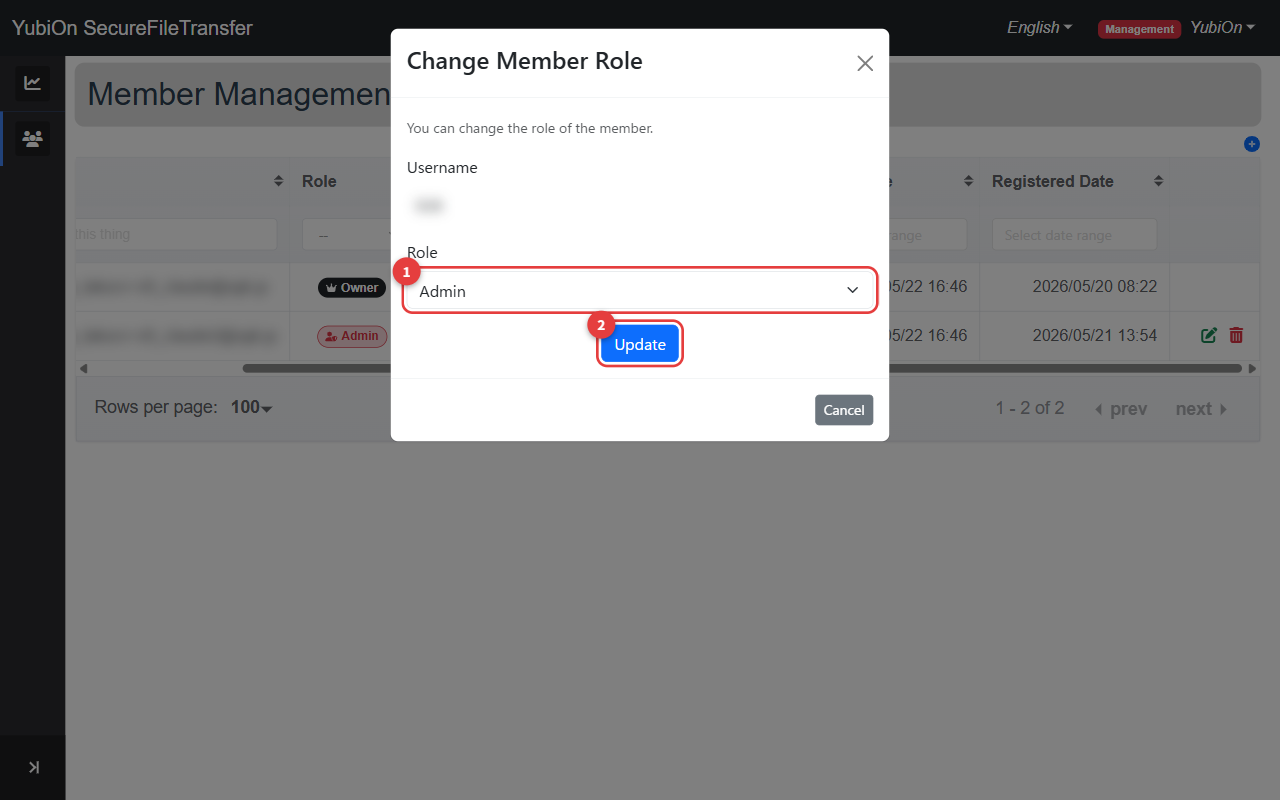
Select the new role (Member or Admin) from the dropdown
Click the "Update" button
Click "OK" in the confirmation dialog
INFO
Changing a role to Owner cannot be done from this screen. To transfer ownership, go to Organization Settings.
Delete Member
- Click the trash icon in the target member's row
- Click "OK" in the confirmation dialog
- The member is removed from the organization
WARNING
Deleted members lose access to the organization. To add them again, you must re-invite them.
Pagination
Pagination is displayed at the bottom of the list. The number of items per page can be changed, and the setting is saved in your browser.