Inviting Members
Invite new members to your organization. A role of Admin or above is required to send invitations.
Steps
Click the "+" button in the upper-right of the Member List screen
The member invitation dialog opens
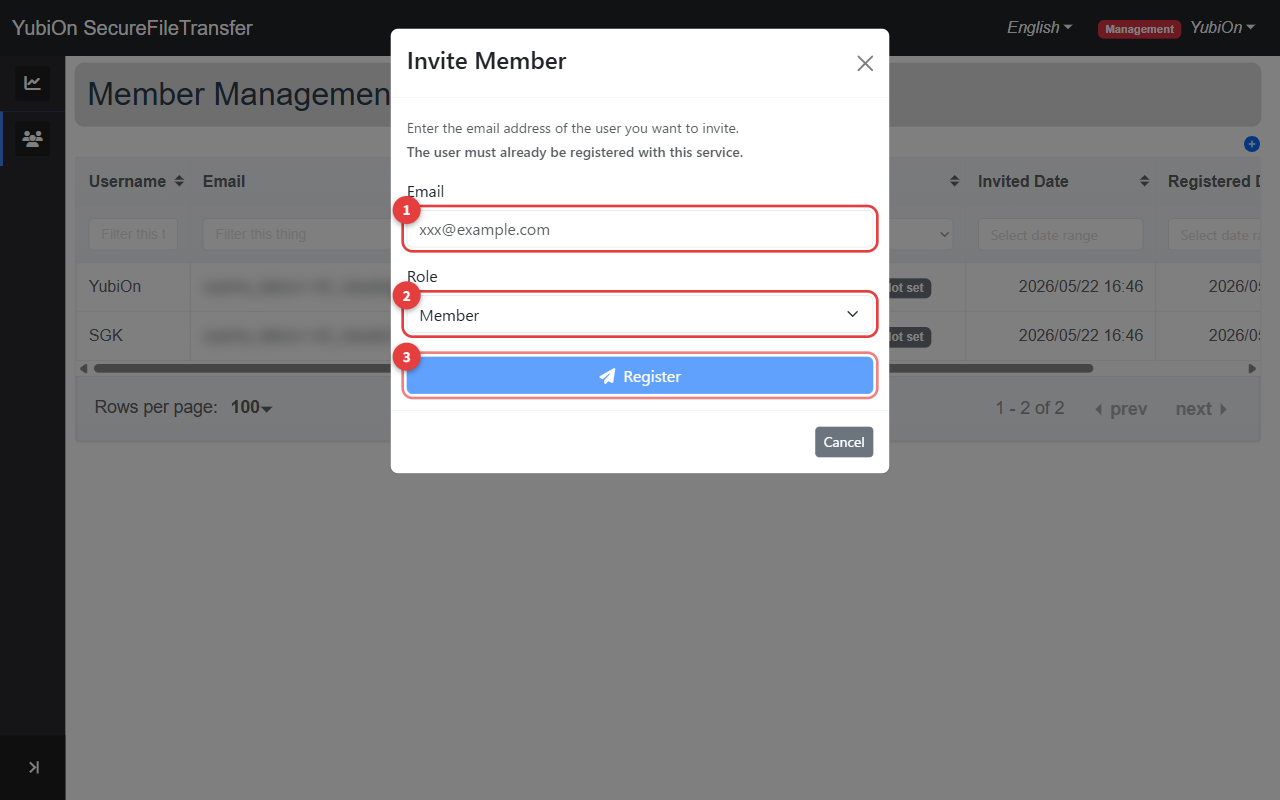
Enter the following information
Field Description Limit Email Email address of the user to invite Up to 128 characters · Required Role Role to assign to the invited member Member or Admin Click the "Register" button
Click "OK" in the confirmation dialog
An invitation email is sent to the entered email address
Selecting a Role
Two roles can be assigned when inviting: Member and Admin.
| Role | Permitted Actions |
|---|---|
| Member | Send and receive files |
| Admin | All Member actions, plus member management and organization settings |
TIP
Roles can be changed after the invitation is accepted. See Member List & Management for details.
Status After Invitation
The invited member appears in the member list with a status of "Invited".
Once the invitation email is accepted, the status changes to "Joined".
If the invitation email is not received, you can resend it from the Member List.
Error Reference
| Error | Cause | Solution |
|---|---|---|
| Failed to invite | Server error | Wait a moment and try again |
| User not found | No account registered with the given email | Ask the person to register first |
| Already joined an organization | The user is already a member of your organization or another organization | Check the member list or the user's status |
| Permission denied | Insufficient role | Admin or above is required |