Installing and Uninstalling the Gmail Add-on
This guide explains the steps to install and uninstall the add-on so that you can use YubiOn SecureFileTransfer features within your Google account (Gmail).
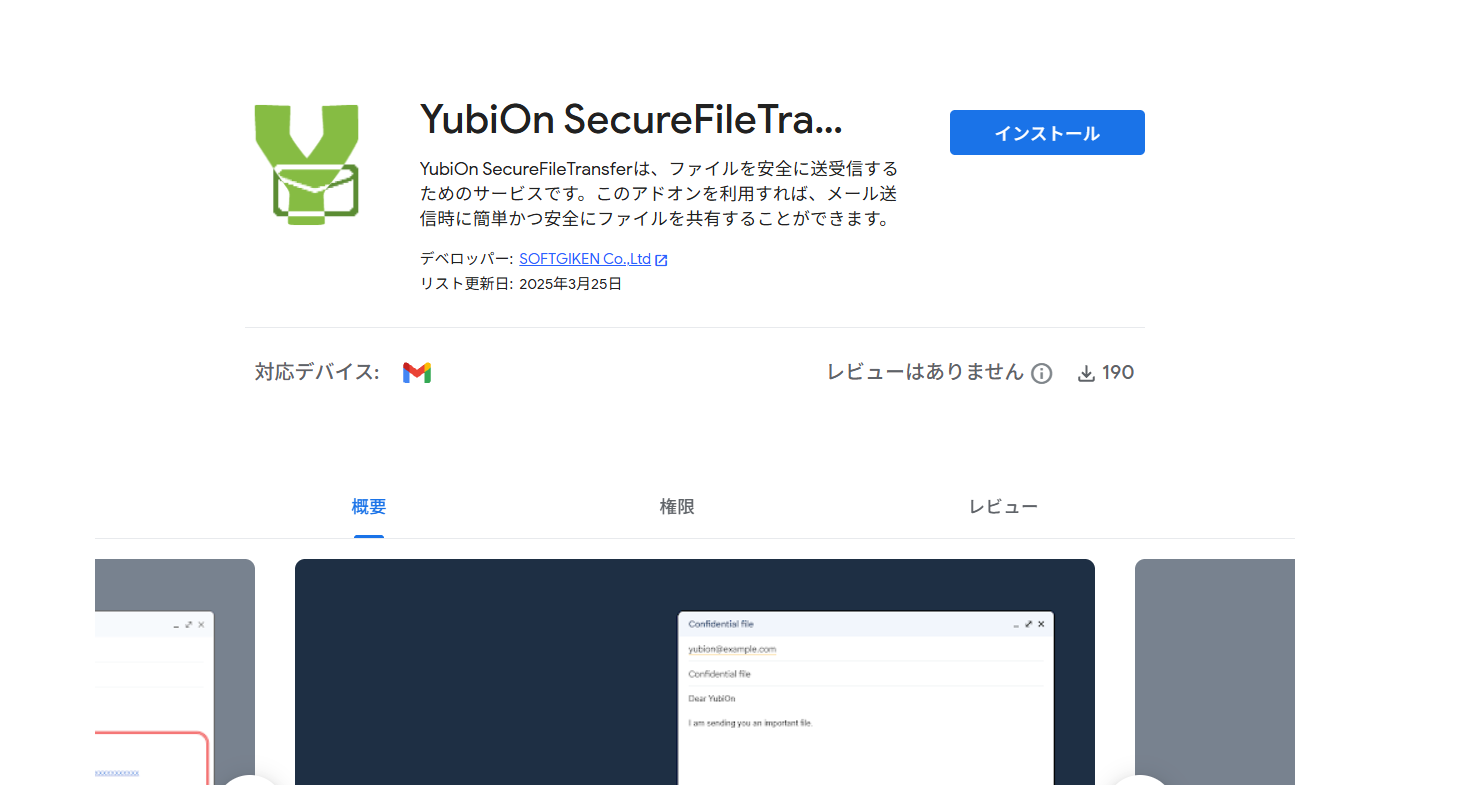
Installation Steps
1. Accessing Google Workspace Marketplace
- Access Google Workspace Marketplace in your browser.
- You can also access it by clicking the "+" icon (Get add-ons) in the sidebar on the right side of the Gmail screen.
2. Searching and Selecting the App
- Type "YubiOn SecureFileTransfer" in the search box at the top of the screen and search.
- Click the "YubiOn SecureFileTransfer" card in the search results to open the details screen.
3. Installing the Add-on
- Click the installation button on the screen.
- When the installation confirmation message appears, follow the instructions on the screen to proceed.
4. Selecting an Account and Confirming Permissions
- Select the Google account you want to use with the add-on.
- A screen will appear confirming the data access permissions requested by the app. Review the details and follow the instructions to allow (approve) access.
5. Confirming Completion
- When "YubiOn SecureFileTransfer has been installed" is displayed, click [Done].
- Refresh the page and confirm that the YubiOn icon has been added to the sidebar on the right side of the Gmail screen.
Uninstallation Steps
You can remove the add-on from your account at any time if you no longer need it.
1. Accessing the Add-on Management Screen
- Access Google Workspace Marketplace in your browser.
- Click the Settings icon (gear icon) at the top right of the screen and select the menu item for managing apps (e.g., [Manage apps]).
2. Selecting and Removing the App
- When the list of installed apps appears, select "YubiOn SecureFileTransfer".
- Follow the on-screen instructions to proceed with the uninstallation (removal).
If the icon does not disappear
If the YubiOn icon still appears in the Gmail sidebar after uninstallation, please reload (refresh) the browser page.
Next Steps
Once the add-on installation is complete, proceed to Initial Setup and Usage of the Gmail Add-on.